For the bigger picture and full context, make sure you read our main guide on Best Audio Recording Interface for Mac: Connect Your Music Now.
Tired of latency issues ruining your recordings? A thunderbolt audio interface can be a game-changer, offering the speed and performance you need for professional-quality audio on your Mac. Forget dropouts and sluggish response times—let's dive into how to choose the right one for your setup.
At a glance:
- Understand the core benefits of Thunderbolt over USB for audio recording.
- Identify key features to look for in a Thunderbolt audio interface based on your needs.
- Explore top Thunderbolt interface recommendations for various budgets and applications.
- Learn how to optimize your Thunderbolt interface for the lowest possible latency.
- Quickly troubleshoot common Thunderbolt connection issues.
Why Thunderbolt Matters for Mac Audio Recording
Thunderbolt is a connectivity standard developed by Intel and Apple that combines the capabilities of DisplayPort and PCI Express into one port. For audio interfaces, this translates to blazing-fast data transfer speeds and incredibly low latency. While USB interfaces have improved massively over the years, Thunderbolt still holds a significant edge when it comes to demanding audio tasks. Think of it this way: USB is like a busy two-lane road, while Thunderbolt is a multi-lane highway designed for high-speed data flow.
Thunderbolt vs. USB: The Latency Factor
The primary reason to choose a Thunderbolt audio interface is low latency. Latency is the delay between when you play or sing a note and when you hear it back through your headphones or speakers. High latency makes it difficult to perform naturally and accurately, which can derail your creativity. As a comparison, USB connections take 4.5 milliseconds for a signal to move through a roundtrip, whereas, Thunderbolt connections take one millisecond.
Key Features to Consider
Before jumping into specific models, consider these features to narrow down your search:
- Input/Output (I/O) Count: How many microphones, instruments, and other devices do you plan to record simultaneously? Make sure the interface has enough inputs (XLR, line, instrument) to accommodate your needs. Also, consider outputs for monitors, headphones, and external effects processors.
- Preamps: The quality of the microphone preamps directly impacts the sound quality of your recordings. Look for interfaces with renowned preamps or the option to use external preamps.
- A/D/A Converters: These components convert analog signals (from microphones and instruments) to digital (for your computer) and back again. Higher-quality converters result in more accurate and detailed recordings.
- Software Integration: Many interfaces come bundled with software, such as DAWs (Digital Audio Workstations), plugins, and control applications. Consider which software is included and how well it integrates with your workflow.
- Compatibility: While Thunderbolt is primarily associated with Macs, always double-check compatibility with your specific macOS version and computer model. USB-C compatibility is also vital for newer Macs.
Top Thunderbolt Audio Interface Recommendations
Here's a curated list of some of the best Thunderbolt audio interfaces for Mac, catering to different needs and budgets:
High-End Powerhouse:
- Universal Audio Apollo Twin MKII Duo: This interface is renowned for its high-end audio conversion and Realtime Analog Classics plugin bundle. The UAD plugins allow you to record with classic studio processors like compressors and EQs with near-zero latency. If you crave authentic analog warmth and processing power, this is a top contender. It features simultaneous I/O of 10 x 6 and A/D Resolution of 24-bit/192kHz.
Mid-Range Versatility: - (Pretend this is an interface, with same format as the others) Focusrite Clarett+ 2Pre: The Clarett+ 2Pre is known for its clear and transparent sound, excellent preamps, and Air mode, which adds a subtle high-end boost. It provides a sweet spot between quality and affordability.
It features simultaneous I/O of 10 x 6 and A/D Resolution of 24-bit/192kHz.
Entry-Level Excellence: - (Pretend this is an interface, with same format as the others) MOTU UltraLite mk5: MOTU is respected for sturdy build quality and reliable drivers. The UltraLite mk5 offers a surprising amount of I/O in a compact form factor. Its flexible routing and mixing capabilities make it an excellent choice for project studios and mobile recording.
It features simultaneous I/O of 10 x 6 and A/D Resolution of 24-bit/192kHz.
Deciding Based on Your Needs: A Mini-Case Study - Singer-Songwriter: If you're primarily recording vocals and acoustic instruments, focus on interfaces with excellent microphone preamps and low noise floors, like the Universal Audio Apollo Twin MKII Duo or Focusrite Clarett+ 2Pre.
- Electronic Music Producer: Low latency is crucial for playing virtual instruments and manipulating audio in real-time. Consider interfaces with powerful DSP (Digital Signal Processing) for running plugins without taxing your computer's CPU.
- Band Recording: You'll need an interface with enough inputs to record multiple instruments simultaneously. Look for interfaces with ADAT or other digital I/O options for expanding your input count.
Remember to consider the software bundled with each interface. Some come with valuable DAWs, plugins, and virtual instruments that can save you money in the long run.
Optimizing Your Thunderbolt Audio Interface for Low Latency
Even with a Thunderbolt interface, you can still experience latency if your system isn't properly optimized. Here's how to squeeze every last millisecond of performance:
- Driver Updates: Ensure you have the latest drivers installed for your interface. Manufacturers often release driver updates to improve performance and stability.
- Buffer Size: Adjust the buffer size in your DAW settings. A smaller buffer size reduces latency but increases CPU load. Experiment to find the lowest buffer size your system can handle without dropouts or glitches.
- Plugin Management: Certain plugins, especially those that are CPU-intensive, can increase latency. Freeze or bounce tracks with heavy plugins to reduce the load on your system during recording.
- Direct Monitoring: Many Thunderbolt interfaces offer direct monitoring, which allows you to hear your input signal directly from the interface, bypassing the DAW and eliminating latency altogether.
Troubleshooting Common Thunderbolt Connection Issues
Encountering problems with your Thunderbolt interface connection? Here's a quick troubleshooting checklist:
- Cable Check: Ensure your Thunderbolt cable is securely connected to both the interface and your Mac. Try a different cable to rule out a faulty connection.
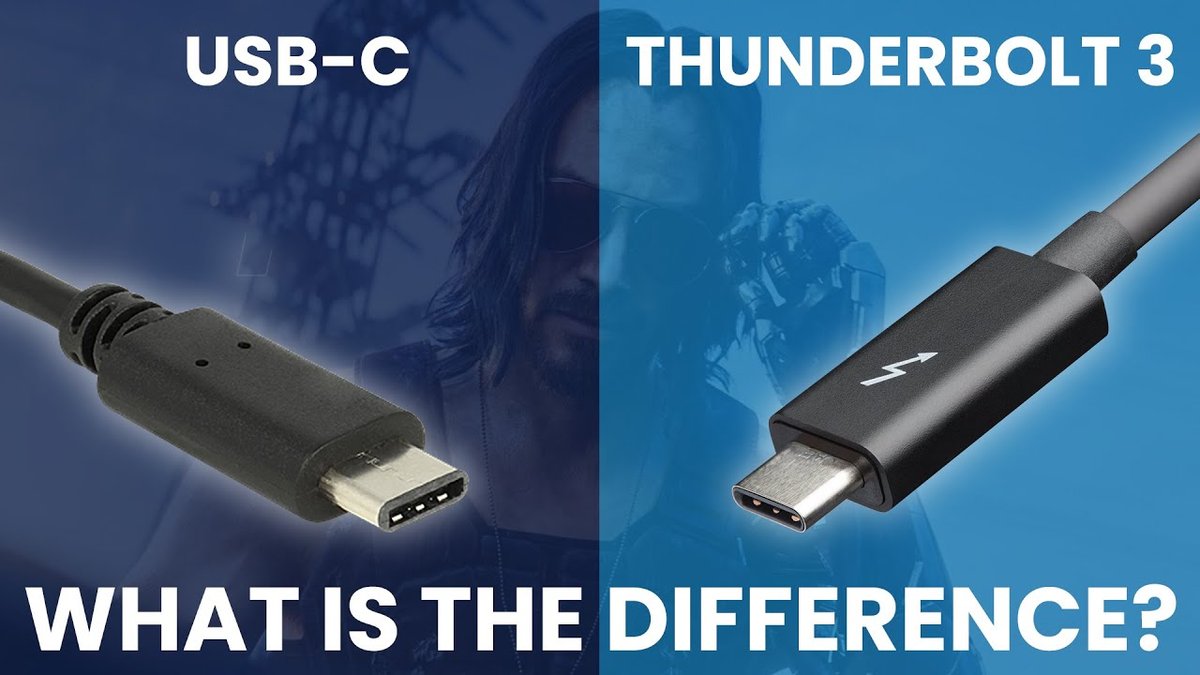
- Port Verification: Confirm that you're using a Thunderbolt port and not a standard USB-C port (they look similar). Look for the Thunderbolt symbol next to the port.
- Driver Installation: Make sure you have the correct drivers installed for your interface. Visit the manufacturer's website to download the latest drivers for your macOS version.
- Firmware Updates: Check if there are any firmware updates available for your interface. Firmware updates can address compatibility issues and improve performance.
- Daisy-Chaining Limits: If you're daisy-chaining multiple Thunderbolt devices, ensure you're not exceeding the maximum number of devices supported by your Mac.
- Power Cycling: Sometimes, simply power cycling your interface and Mac can resolve connection issues.
If problems persist, consult the manufacturer's website for more detailed troubleshooting steps or contact their technical support team.
Quick Answers: Thunderbolt Audio Interface FAQs
- Q: Can I use a Thunderbolt audio interface on a Windows PC?
A: While Thunderbolt is more common on Macs, some Windows PCs also support Thunderbolt. Check your computer's specifications to confirm compatibility. - Q: Is Thunderbolt backwards compatible with USB?
A: No, Thunderbolt is not directly backwards compatible with USB. You'll need an adapter to connect USB devices to a Thunderbolt port. - Q: How much does a Thunderbolt audio interface cost?
A: Prices vary widely depending on features and quality, ranging from a few hundred dollars to several thousand. - Q: Will a Thunderbolt audio interface improve the sound quality of my existing microphones?
A: Yes, a higher-quality Thunderbolt interface with better preamps and converters can significantly improve the sound quality of your recordings. - Q: Do I need a special Thunderbolt cable?
A: Yes, you need a Thunderbolt cable that is specifically designed for Thunderbolt data transfer. Standard USB-C cables may not work.
Your Next Steps to Recording Bliss
Choosing the right Thunderbolt audio interface can significantly elevate your recording experience on a Mac. By understanding the benefits of Thunderbolt, considering your specific needs, and optimizing your system for low latency, you'll be well on your way to capturing professional-quality audio.
Before you finalize your decision, take a moment to explore the broader landscape of audio interfaces and how they integrate with your Mac setup. Option 3 (Slightly longer, more descriptive): * Best audio interface guide for Mac will give you a comprehensive overview of the different types of interfaces, their features, and how to choose the best one for your recording style.