Stuck trying to decipher the world of audio interfaces? Finding the right one feels like navigating a minefield of specs and jargon. The reality is, the best recommended audio interface depends entirely on your needs, your budget, and the type of music you’re making. This guide cuts through the noise to help you choose the perfect audio interface for your home studio.
At a glance:
- Quickly assess your input/output needs and identify the ideal interface type (USB, USB-C, Thunderbolt).
- Learn how to interpret key specs like preamps, dynamic range, and latency.
- Discover specific interface recommendations tailored to different recording scenarios and budgets.
- Understand how to troubleshoot common audio interface setup issues.
- Gain confidence in choosing an interface that will grow with your skills and needs.
What Makes an Audio Interface "Good"? It's More Than Just Specs
Beyond the technical specifications, a "good" audio interface seamlessly integrates into your workflow, providing clean, reliable audio capture and playback. Think of it as the central hub of your home studio, translating your musical ideas into digital form. To make the best choice, let's start by understanding what problems an audio interface solves, and how it elevates your project from something that "sounds okay" into something "professional".
Determine Your Recording Needs: Inputs, Outputs, and Beyond
Before diving into specific models, take a moment to assess your current and future recording needs. This is crucial for avoiding buyer's remorse down the line. Ask yourself:
- How many inputs do I need? Do you primarily record vocals, a single instrument, or a full band? Each microphone or instrument requires a dedicated input. For solo artists, a 2-in/2-out interface like the Focusrite Scarlett 2i2 (4th Gen) might suffice. For multi-instrumentalists or small ensembles, consider a 4-in/4-out model like the Focusrite Scarlett 4i4 (4th Gen) or larger interfaces such as the Focusrite Scarlett 18i20 (4th Gen). Consider if you need 62 dB of gain for dynamic mics, especially Shure SM7B or similar.
- What types of inputs do I need? Microphone inputs usually use XLR connectors, while instruments often use 1/4-inch instrument inputs. Some interfaces offer combo jacks that accept both. Do you need dedicated line inputs for connecting synthesizers or external preamps?
- Do I need MIDI connectivity? If you plan to use MIDI keyboards, drum machines, or other MIDI controllers, ensure your interface has MIDI input/output ports. SSL2+ MKII is a solid option that has MIDI capabilities.
- What about outputs? Consider how many sets of studio monitors you need to connect, as well as headphone outputs for monitoring. Do you need balanced outputs (TRS) for connecting to professional audio equipment? Audient iD4 MkII is a great option with dual headphone outputs.
Example: Sarah, a singer-songwriter, primarily records vocals and acoustic guitar. She also uses a MIDI keyboard for composing. A 2-in/2-out interface with a combo jack and MIDI I/O would be ideal for her.
Connection Types: USB, USB-C, and Thunderbolt - Which Reigns Supreme?
The connection type dictates how your audio interface communicates with your computer. Understanding the nuances of each will allow you to make the best pick.
- USB: The most common type and widely compatible with both Mac and Windows computers. Perfect for smaller home studios.
- USB-C: Offers faster data transfer speeds than USB, resulting in lower latency. Increasingly common on newer computers. This is a great choice for home studios that work with more demanding projects.
- Thunderbolt: The fastest connection type, offering the lowest latency and the highest bandwidth. Ideal for larger projects with lots of tracks and plugins, but typically more expensive and primarily used by Mac users (though compatibility on the Windows side is improving). Universal Audio Apollo Twin X is a phenomenal choice for Thunderbolt users.
Pitfall: Don’t assume all USB-C ports are created equal. Some may only support USB 2.0 speeds, negating the benefits of USB-C. Check your computer's specifications to confirm the USB-C port supports USB 3.0 or higher.
Key Specs Decoded: Preamps, Converters, and Latency
Understanding the technical specifications of an audio interface is crucial for making an informed decision. Let's break down some of the most important ones:
- Preamps: Microphone preamps amplify the weak signal from a microphone to a usable level for recording. High-quality preamps provide clean, transparent amplification without adding unwanted noise or coloration. Focusrite interfaces are known for their clean preamps. Rode Rodecaster Duo has ultra-low noise quality preamps.
- Converters (A/D & D/A): Analog-to-digital (A/D) converters convert analog signals (from microphones and instruments) into digital signals that your computer can understand. Digital-to-analog (D/A) converters convert digital signals back into analog signals for playback through your monitors or headphones. Higher-quality converters result in more accurate and detailed audio reproduction.
- Sample Rate and Bit Depth: These determine the resolution of your audio recordings. Higher sample rates (e.g., 96 kHz or 192 kHz) capture more audio information, while higher bit depths (e.g., 24-bit) provide a wider dynamic range. While higher isn't always necessary (44.1 kHz/16-bit is CD quality), 48 kHz/24-bit is a common standard for modern recording.
- Latency: Latency is the delay between when you play a note or sing a word and when you hear it back through your headphones. Low latency is crucial for a comfortable and responsive recording experience. Interfaces with Thunderbolt connections generally offer the lowest latency. MOTU M2 is known for its amazing speed for monitoring live inputs. Many interfaces utilize direct monitoring, which sends the input signal directly to your headphones, bypassing the computer and eliminating latency.
- Dynamic Range: the difference between the quietest and loudest parts of your sound. For example MOTU M2 boasts 120 dB of dynamic range.
Quick Tip: Don't get too caught up in chasing the highest sample rates and bit depths. While they can offer subtle improvements in audio quality, they also increase CPU load and storage requirements. Focus on getting a good-quality interface with clean preamps and low latency, and you'll be well on your way to making great recordings.
Recommended Audio Interface: Models for Different Budgets and Setups
Here's a breakdown of recommended audio interfaces across various price points and recording scenarios:
Budget-Friendly (Under $200):
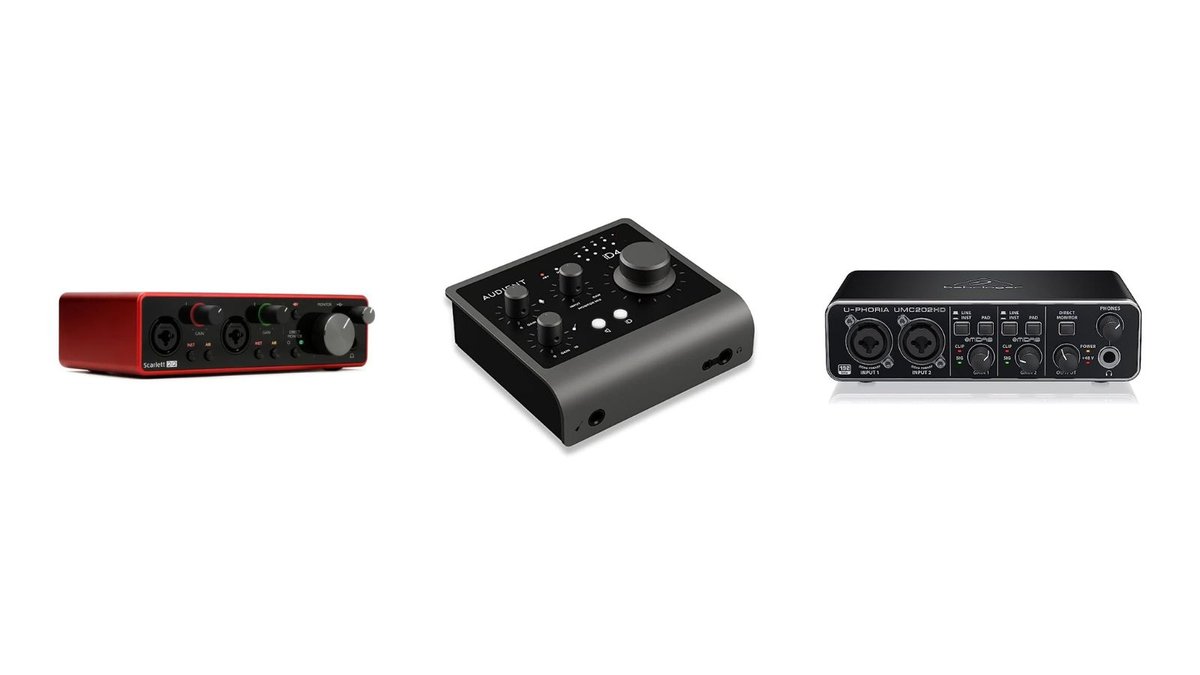
- Focusrite Scarlett 2i2 (4th Gen): A solid all-around performer with transparent preamps, low latency, and easy setup. Ideal for beginners and singer-songwriters.
- Audient iD4 MkII: Offers excellent sound quality for the price, with high-quality preamps and a user-friendly design. Requires USB 3.0.
- Behringer U-Phoria UMC22: A very budget-friendly option for basic recording needs. Limited features and potential driver issues.
Mid-Range ($200 - $500): - SSL2+ MKII: A great choice for music producers who desire high-quality SSL preamps at an affordable price.
- Focusrite Scarlett 4i4 (4th Gen): More inputs and outputs for expanding your recording setup. Ideal for singer-songwriters or small sessions.
- MOTU M2: Known for its exceptional dynamic range and low latency performance.
High-End ($500+): - Universal Audio Apollo Twin X: A premium interface with built-in DSP for real-time plugin processing. Offers exceptional sound quality and low latency. Requires Thunderbolt.
- RME Fireface UFX II: A professional-grade interface with a wide range of features and exceptional sound quality.
Guitarists: - IK Multimedia Axe I/O: Designed specifically for guitarists, with a JFET input for added warmth and a re-amping output for experimenting with different amps.
Podcasters: - Rode Rodecaster Duo: Easy to use and with ultra-low noise quality preamps; however, there is a learning curve involved with the software.
Troubleshooting Common Audio Interface Issues
Even with the best equipment, you might encounter occasional issues. Here are some common problems and how to fix them:
- No sound: Check that your interface is properly connected and that the correct input and output devices are selected in your DAW and operating system settings. Ensure the volume knobs are turned up and that your monitors are powered on.
- High latency: Increase the buffer size in your DAW settings. However, be aware that increasing the buffer size can also increase latency. Experiment to find a balance between latency and CPU load. Ensure you have the proper drivers installed.
- Crackling or popping: This can be caused by CPU overload or driver issues. Try increasing the buffer size, closing unnecessary applications, or updating your audio interface drivers.
- Driver Issues: Always install the latest drivers from the manufacturer's website.
Practical Playbook: Choosing Your Audio Interface
Here’s a simple decision tree to guide your selection:
- Budget: How much are you willing to spend?
- Inputs/Outputs: How many simultaneous inputs do you need?
- Connection Type: What connection types does your computer support (USB, USB-C, Thunderbolt)?
- Features: Do you need MIDI I/O, built-in DSP, or other specific features?
- Read Reviews: Research user reviews and compare different models within your budget and feature set.
Implementation Tip: Start with a basic interface that meets your immediate needs. As your skills and recording requirements grow, you can always upgrade to a more advanced model later.
Quick Answers: Common Questions About Audio Interfaces
- Q: Do I really need an audio interface, or can I just use my computer's built-in sound card?
- A: While you can use your computer's sound card, an audio interface offers significantly better sound quality, lower latency, and more connectivity options. It's a worthwhile investment for anyone serious about recording music.
- Q: What is phantom power, and do I need it?
- A: Phantom power is a DC voltage (typically 48V) that's supplied to condenser microphones through the XLR cable. If you're using a condenser microphone, you'll need an audio interface with phantom power.
- Q: What DAW (Digital Audio Workstation) should I use?
- A: Popular DAWs include Ableton Live, Pro Tools, Logic Pro, Cubase, and FL Studio. Many audio interfaces come bundled with a starter version of a DAW. Experiment with different DAWs to find one that suits your workflow.
- Q: How important are preamps?
- A: They amplify microphone signals, and high-quality preamps improve clarity and warmth.
- Q: What happens if my interface doesn't have enough gain for my dynamic microphone?
- A: Consider buying a microphone preamp booster of models such as Cloudlifter CL-1 or sE Electronics DM1 Dynamite Inline Preamp.
Take Control of Your Sound
Choosing the right audio interface is a crucial step in building a successful home recording setup. By carefully assessing your needs, understanding the key specifications, and researching different models, you can find an interface that will empower you to create professional-sounding recordings. Remember, you can always refer to the broader context of audio interfaces and their place in your recording setup with this helpful resource: Choose one of these options: Learn about audio interfaces. Go forth and create!