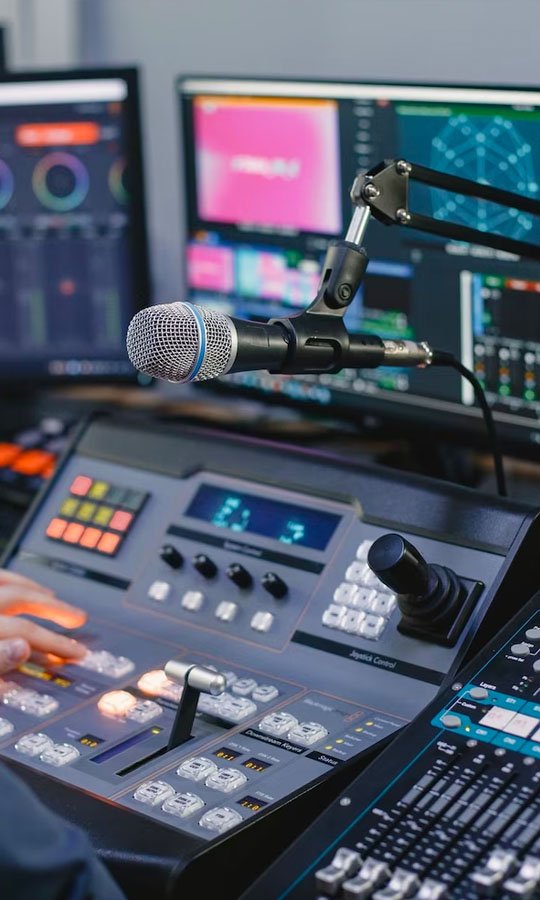
So, you're ready to take your music production to the next level on your Mac? That's awesome! But your built-in sound card just isn't cutting it. The key ingredient? An audio recording interface for mac. Choosing the right one can feel overwhelming, but don't worry. This guide will break down everything you need to know, from understanding the basics to picking the perfect interface for your specific needs. Get ready to unlock a world of pristine audio and unleash your creative potential.
At a glance:
- An audio interface is essential for recording high-quality audio on your Mac.
- Key features to consider include inputs/outputs, connectivity (USB or Thunderbolt), audio quality, and software integration.
- USB interfaces are generally more affordable, while Thunderbolt offers faster speeds and lower latency.
- Built-in preamps are crucial for capturing clean and detailed recordings.
- Consider your budget and recording needs to choose the best interface for you.
Why You Need an Audio Recording Interface for Mac
Think of your Mac's built-in audio input as a basic microphone – it's fine for casual use, but won't deliver professional sound quality when recording audio. An interface bridges the gap, acting as an external sound card packed with features that makes it a recording powerhouse. It's the central hub for all your audio connections – microphones, instruments, and studio monitors.
Here's what an audio interface brings to the table:
- High-Quality Preamps: Interfaces feature built-in preamplifiers that boost the signal from your microphones to a usable level while adding little to no noise.
- Multiple Inputs & Outputs: Record multiple instruments or vocals simultaneously. Route audio to different outputs for monitoring and mixing.
- Improved Audio Quality: Higher bit depths and sample rates (like 24-bit/192kHz) capture more detail and dynamic range than your Mac's internal sound card, resulting in cleaner, more professional recordings.
- Lower Latency: Reduce the delay between playing an instrument and hearing it back, making recording and overdubbing much easier.
Understanding Key Audio Interface Features
Choosing an audio interface can seem daunting, but it boils down to understanding a few key features:
Inputs and Outputs: How Much Do You Need?
The number and type of inputs and outputs are crucial. Consider what you'll be recording most often.
- Microphone Inputs (XLR): Essential for connecting microphones, especially condenser mics that require phantom power.
- Line Inputs (TRS/TS): Connect synthesizers, drum machines, and other line-level devices.
- Instrument Inputs (Hi-Z/DI): Optimized for guitars and basses, providing the correct impedance for a clean signal.
- Monitor Outputs (TRS/XLR): Connect your studio monitors for accurate playback.
- Headphone Output: For monitoring your audio while recording.
- MIDI I/O: Connect MIDI controllers and instruments to your Mac.
If you're primarily recording vocals and a single instrument, a 2-in/2-out interface might suffice. Bands or those recording multiple instruments simultaneously will need more inputs.
Connectivity: USB vs. Thunderbolt
Your Mac's ports dictate the type of connection you'll need. Both USB and Thunderbolt are common, but they offer different performance levels.
- USB: USB interfaces are widely compatible and generally more affordable. USB-C is the current standard, offering faster speeds than older USB versions.
- Thunderbolt: Explore Thunderbolt Audio Interfaces for incredibly low latency and high bandwidth, making them ideal for demanding recording situations. They offer top-tier performance.
Choose the connection that best balances your needs and budget.
Audio Quality: Bit Depth and Sample Rate
Bit depth and sample rate determine the resolution and detail of your audio recordings.
- Bit Depth: Measures the dynamic range of your audio. 24-bit is the standard for professional recording, offering a wider dynamic range than 16-bit.
- Sample Rate: Measures how many times per second the audio signal is sampled. 44.1kHz is standard for CD-quality audio, while 48kHz is common for video. Higher sample rates like 96kHz or 192kHz capture even more detail, but require more processing power and storage space.
For most applications, 24-bit/48kHz or 24-bit/96kHz will deliver excellent results.
Software and Compatibility
Ensure the interface is compatible with your Mac's operating system and your preferred DAW (Digital Audio Workstation). Most interfaces come with drivers and software that you'll need to install. Many also include bundled software like DAWs, virtual instruments, and effects plugins.
Top Audio Recording Interfaces for Mac: Our Recommendations
Here are a few of our top recommendations, catering to different needs and budgets:
- Universal Audio Apollo Twin X Quad: The gold standard for Mac users seeking unparalleled audio quality and performance. Its high-end conversion, robust Thunderbolt 3 connectivity, and powerful quad-core DSP make it a top choice for professional studios. The included Luna recording software and Unison mic preamps are major pluses. Key specs: 2 combo mic/line inputs, 2 monitor outputs, optical input, Hi-Z input, 127dB dynamic range, -117 dB THD+N.
- Universal Audio Apollo Twin X Duo: A step down in processing power from the Quad (dual DSP chips instead of quad), but still delivering exceptional audio quality and features.
- Focusrite Scarlett 4i4 (4th Gen): A popular choice for beginners and intermediate users. Its USB-C connectivity, upgraded Scarlett mic preamps with "Air" mode, and included software bundle make it a great value. Key specs: 24-bit/192kHz, 4 inputs/4 outputs, Studio One Artist DAW, Studio Magic Plugin Suite. You'll get great sound and tools to get started recording.
- Audient iD4 MKII: A compact and affordable USB-C interface with a Class-A Audient console mic preamp, delivering exceptional sound quality for its price. The JFET DI input is a bonus for guitarists and bassists. Key specs: 24-bit/96kHz, intuitive monitor control.
- PreSonus Studio 24c: A solid USB-C interface with two XMAX-L solid-state mic preamps, MIDI I/O, and included Studio One Artist and Ableton Live Lite DAW software. The dedicated mixer knob is a handy feature. Key specs: 24-bit/96kHz.
- Universal Audio Volt 2: A simplified and more affordable offering from Universal Audio, the Volt 2 still delivers excellent sound quality and includes MIDI connections, making it a versatile option.
- Native Instruments Komplete Audio 6 Mk2: A feature-rich USB interface with 6 inputs and 6 outputs, 24-bit/192kHz resolution, and Cirrus Logic converters. It also includes a comprehensive software bundle.
- MOTU M4: A USB interface known for its incredibly low latency (2.5ms), full-color LCD, and loopback channels for streaming and podcasting.
- IK Multimedia iRig HD 2: A highly portable and instrument-specific interface (guitar/bass) with 24-bit/96kHz resolution, built-in preamp, and headphone output.
- Behringer U-Phoria UM2: A budget-friendly option for beginners who need a simple interface for basic recording.
How to Choose the Right Audio Interface for Your Needs
Here's a step-by-step guide to help you narrow down your options:
- Define Your Recording Needs:
- What instruments and vocals will you be recording?
- How many inputs do you need to record simultaneously?
- What type of microphones will you be using?
- Determine Your Budget: Audio interfaces range from under $100 to several thousand dollars. Set a realistic budget and stick to it.
- Consider Your Mac's Connectivity: Choose an interface that is compatible with your Mac's ports (USB or Thunderbolt).
- Evaluate Software Bundles: Some interfaces include valuable software like DAWs, virtual instruments, and effects plugins. Consider the value of these bundles when making your decision.
- Read Reviews and Compare Specs: Before making a purchase, read reviews from other users and compare the specifications of different interfaces.
Setting Up Your Audio Recording Interface on Mac
Once you've chosen your interface, setting it up is relatively straightforward:
- Install Drivers: Download and install the drivers from the manufacturer's website.
- Connect the Interface: Connect the interface to your Mac via USB or Thunderbolt.
- Select the Interface in System Preferences: Go to System Preferences > Sound and select your audio interface as both the input and output device.
- Configure Your DAW: In your DAW's preferences, select your audio interface as the audio input and output device.
- Adjust Input Levels: Use the gain knobs on the interface to adjust the input levels for your microphones and instruments. Aim for a healthy signal without clipping.
Common Questions About Audio Interfaces
- What is latency, and why is it important? Latency is the delay between playing an instrument and hearing it back through your headphones or monitors. Low latency is crucial for a natural recording experience.
- Do I need phantom power? If you're using condenser microphones, you'll need an interface with phantom power (+48V).
- What's the difference between a microphone preamp and a line input? Microphone preamps are designed to boost the weak signal from microphones, while line inputs are designed for devices with a stronger signal (like synthesizers).
- Can I use an audio interface with GarageBand? Yes, most audio interfaces are compatible with GarageBand.
- Is a more expensive interface always better? Not necessarily. A more expensive interface may offer better audio quality, more features, or more inputs/outputs, but it may not be the best choice for your specific needs. Consider your requirements and budget when making your decision.
Troubleshooting Common Audio Interface Problems
- No sound: Check your connections, make sure the interface is selected as the input and output device in System Preferences and your DAW, and verify that the volume levels are turned up.
- Distorted sound: Reduce the input gain on the interface to prevent clipping.
- Latency issues: Increase the buffer size in your DAW's audio settings. If that doesn't work, try using a Thunderbolt interface or upgrading your computer's processor.
- Driver problems: Reinstall the drivers from the manufacturer's website. Make sure you're using the latest drivers compatible with your Mac's operating system.
Taking Your Recordings to the Next Level
Once you have your audio interface set up, consider these tips to elevate your recordings:
- Invest in Quality Microphones: A good microphone is just as important as a good audio interface.
- Treat Your Recording Space: Acoustic treatment can significantly improve the sound of your recordings by reducing reflections and unwanted noise.
- Learn Basic Mixing Techniques: Understanding basic mixing techniques can help you create professional-sounding recordings.
- Experiment with Different Sounds: Don't be afraid to try new things and explore different sounds.
The Next Step: Start Creating!
Choosing the right audio recording interface for mac is a vital step in creating high-quality recordings. By understanding the key features and considering your specific needs, you can find an interface that will empower your musical journey. Best audio interface guide can help you explore even more options. Don't get too caught up in the details, though. The most important thing is to start recording and experimenting. Your perfect sound is waiting to be discovered.