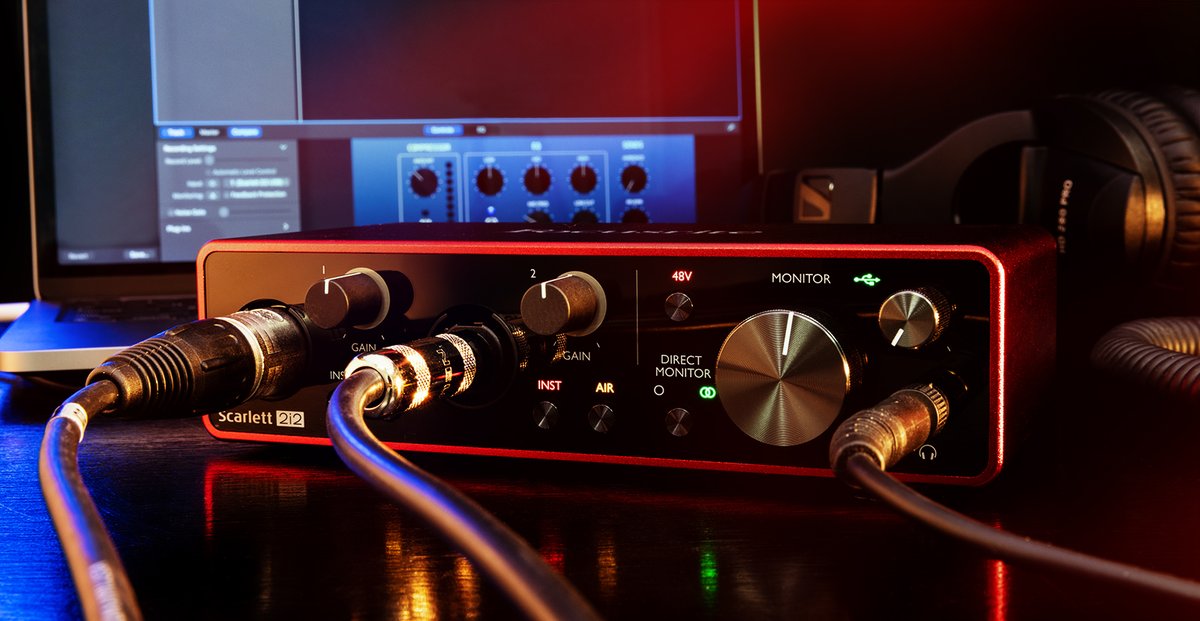
Struggling to get pristine recordings on your Macbook? The right audio interface can transform your Mac from a simple computer into a powerful recording studio. Understanding your specific needs is the key to choosing the perfect audio interface Macbook setup.
At a glance:
- Discover the essential features to look for in an audio interface for your Macbook.
- Learn how to match interface inputs/outputs to your recording needs.
- Understand the importance of compatibility, latency, and preamps.
- Get specific recommendations for different budgets and recording scenarios.
- Troubleshoot common audio interface issues on macOS.
Why Your Macbook Needs an Audio Interface (and Not Just the Built-in Mic)
Your Macbook's built-in microphone and audio input are convenient, but they lack the quality and flexibility required for serious music production. An audio interface provides:
- Superior Audio Quality: High-quality preamps and converters capture cleaner, more detailed recordings.
- Multiple Inputs & Outputs: Connect microphones, instruments, and speakers simultaneously.
- Lower Latency: Enables real-time monitoring without distracting delays.
- Phantom Power: Powers condenser microphones, essential for professional vocal recordings.
Think of it like this: your Macbook is the brain, the DAW (Digital Audio Workstation) is the creative canvas, and the audio interface is the bridge that translates sound into data the computer can understand, and vice versa. Without a good bridge, the whole process suffers.
Understanding Key Features for Your Audio Interface Macbook Setup
Choosing the right audio interface Macbook configuration requires understanding key features and how they relate to your specific needs.
Inputs and Outputs (I/O): Matching to Your Recording Needs
The number and types of inputs and outputs are crucial. Consider these questions:
- How many instruments/microphones do you need to record simultaneously? A solo artist might need 1-2 inputs, while a band recording live needs 8 or more.
- What types of connections do your microphones and instruments use? XLR for microphones, 1/4" for instruments, etc.
- Do you need MIDI I/O for connecting MIDI controllers or synthesizers?
- How many separate monitor mixes do you need? Multiple outputs allow for independent mixes for different performers.
Example: A singer-songwriter who records vocals and guitar simultaneously would benefit from an interface with at least two inputs (one XLR for the microphone, one 1/4" for the guitar).
Connectivity: USB-C or Thunderbolt for Macs?
Macs primarily use USB and Thunderbolt connections. Here's a quick rundown:
- USB (including USB-C): Widely compatible and generally more affordable. USB-C offers faster transfer speeds than USB-A.
- Thunderbolt: Provides significantly faster data transfer speeds and lower latency, ideal for demanding projects and high track counts.
For most home recording setups, USB-C offers a solid balance of performance and affordability. Thunderbolt is beneficial for larger projects, more complex routing, and ultra-low latency requirements.
Compatibility: Ensuring Smooth Integration with Your Mac
Verify that the audio interface is compatible with your specific Mac model, macOS version, and DAW software (e.g., Logic Pro, Ableton Live, Pro Tools). Most manufacturers provide compatibility information on their websites.
Pitfall: Don't assume that an older interface will automatically work with the latest macOS. Always check compatibility to avoid driver issues and performance problems.
Preamps: The Heart of Your Sound
Preamps amplify the weak signals from microphones and instruments to a usable level. The quality of the preamps significantly affects the overall sound.
- Clean Preamps: Provide a transparent and neutral sound.
- Character Preamps: Add color, warmth, or subtle distortion to the signal.
Some interfaces offer features like "Air" mode (found on Focusrite interfaces), which enhances the high-end frequencies for a brighter sound.
Resolution and Sample Rate: Capturing the Finest Details
Higher resolution (bit depth) and sample rate capture more detail in your recordings.
- 24-bit depth/48 kHz sample rate: A good starting point for most recording projects.
- 24-bit depth/96 kHz or 192 kHz sample rate: Offers even higher fidelity for professional-grade recordings.
While higher sample rates can theoretically capture more detail, they also require more processing power and storage space.
Latency: The Enemy of Real-Time Performance
Latency is the delay between when a sound is produced and when you hear it through your headphones or speakers. Low latency is critical for smooth monitoring of live inputs.
- Acceptable Latency: Below 10ms.
- Ultra-Low Latency: 2.5ms round-trip latency or lower.
Thunderbolt interfaces typically offer lower latency than USB interfaces. Some interfaces also include DSP (Digital Signal Processing), which allows for real-time effects processing with minimal latency.
Audio Interface Macbook: Top Recommendations for Different Scenarios
Here are a few recommendations based on different needs and budgets:
- Budget-Friendly: Focusrite Scarlett Solo (4th Gen) - Great sound quality, easy to use, perfect for solo recording.
- Versatile Home Studio: Focusrite Scarlett 4i4 (4th Gen) - More inputs and outputs for recording multiple instruments or vocals simultaneously.
- High-End Performance: Universal Audio Apollo Twin X Duo - Professional-grade audio quality, flexible I/O, and onboard DSP for real-time processing.
- Portable Recording: Audient iD4 MKII - Compact, excellent sound, single Class-A preamp.
- Live Performance: MOTU M4 - Apple silicon compatibility, metering for live music recording, quiet preamps.
Remember to consider your specific needs and budget when making your decision. It's better to invest in a slightly more expensive interface that meets your requirements than to settle for a cheaper option that limits your capabilities.
Troubleshooting Common Audio Interface Issues on macOS
Even with a well-chosen audio interface, you might encounter issues. Here are some common problems and how to address them:
- No Audio Output:
- Check that the interface is selected as the audio input and output device in System Preferences > Sound.
- Verify that the correct output channels are selected in your DAW.
- Try restarting your computer and the audio interface.
- High Latency:
- Reduce the buffer size in your DAW's audio settings. Be careful, as setting the buffer size too low can cause audio dropouts.
- Close any unnecessary applications that might be consuming system resources.
- Consider upgrading to a Thunderbolt interface for lower latency.
- Driver Issues:
- Download and install the latest drivers from the manufacturer's website.
- Ensure that the drivers are compatible with your macOS version.
- Try reinstalling the drivers.
Quick Answers: Audio Interface Macbook FAQs
Q: Do I really need an audio interface? Can't I just use my Macbook's built-in microphone?
A: For casual voice memos, the built-in mic is fine. But for any kind of serious music recording, an audio interface is essential. It provides significantly better audio quality, lower latency, and the ability to connect professional microphones and instruments.
Q: What's the difference between USB and Thunderbolt audio interfaces?
A: Thunderbolt offers significantly faster data transfer speeds and lower latency than USB. This is particularly important for larger projects with high track counts and complex routing. USB interfaces are generally more affordable and suitable for most home recording setups.
Q: How many inputs do I need on my audio interface?
A: Consider the maximum number of instruments and microphones you need to record simultaneously. A solo artist might only need 1-2 inputs, while a band recording live needs 8 or more.
Q: What is phantom power?
A: Phantom power is a DC voltage (usually +48V) supplied by the audio interface to power condenser microphones. Condenser microphones require phantom power to operate.
Q: What is DSP and why is it important?
A: DSP (Digital Signal Processing) allows the audio interface to process audio signals in real-time, using onboard processors. This is important as it helps to lower latency, allowing you to record and monitor effectively. It alleviates the stress from your computer’s processor to allow a smoother and less jumpy recording experience.
Your Next Steps: Choosing the Right Audio Interface for Your Macbook
Choosing an audio interface Macbook setup doesn’t need to be daunting. To help you in your journey, ask yourself these questions:
- What is my Budget? This will quickly narrow down your options.
- How many inputs do I need? Be realistic about your current and future recording needs.
- Am I prioritizing portability or studio quality? Some interfaces are more compact and ideal for travel, while others offer more features and higher performance for studio use.
Once you have answered these questions, you'll be well on your way to selecting the perfect audio interface for your Macbook.
And if you’re still unsure where to start, Find your best Mac interface to explore a curated list of top-rated options.